
Cellxpert
How to get your Cellxpert credentials and connect them to CasinoFlux
Cellxpert
Cellxpert requires three values in CasinoFlux: a Client ID, an API Key, and a constructed API URL. You also need to whitelist the CasinoFlux IP address in your Cellxpert account before any data can be fetched.
CasinoFlux requires Client ID, API Key, and API URL for Cellxpert.
Before You Start
Make sure you have:
- An approved Cellxpert affiliate account with dashboard access
- API Settings enabled on your account
If API Settings is not visible in your dashboard, contact your Affiliate Manager and ask them to enable it before proceeding.
Step 1: Copy Your Client ID
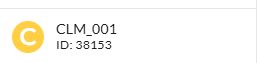
Once logged into your Cellxpert dashboard, locate your Client ID in the bottom-left corner of the screen. Copy this value and paste it into the Client ID field in CasinoFlux.
Step 2: Go to API Settings
Navigate to API Settings in your Cellxpert dashboard.
Step 3: Generate an Access Key
Click Generate a new Access Key. Copy the generated value and paste it into the API Key field in CasinoFlux.

Step 4: Whitelist the CasinoFlux IP Address
In your Cellxpert API Settings, add the following IP address to the whitelist:
129.212.171.57This step is mandatory. Without whitelisting this IP, Cellxpert will reject all API requests from CasinoFlux and no data will be fetched. You can always find the current CasinoFlux IP in your account under Settings → Platform → Platform IP.
Step 5: Build the API URL
The API URL is constructed using your operator's base URL with a fixed path and parameters. Use the format below, replacing {baseurl} with your operator's base URL:
https://{baseurl}/api/?command=mediareport&fromdate=2025-01-01&todate=2025-01-31&Day=1&DateFormat=day&TrackingCode=1&Brand=1&Language=1&Type=1&Size=1&Name=1Example with a real base URL:
https://go.rootzaffiliates.com/api/?command=mediareport&fromdate=2025-01-01&todate=2025-01-31&Day=1&DateFormat=day&TrackingCode=1&Brand=1&Language=1&Type=1&Size=1&Name=1| Parameter | Description |
|---|---|
{baseurl} | Your operator's base URL (see Step 6) |
command=mediareport | Required — do not change |
fromdate / todate | Date range — CasinoFlux replaces these dynamically |
Day=1&DateFormat=day | Required for day-level data — do not change |
TrackingCode, Brand, etc. | Column flags — keep all set to 1 |
Step 6: Find Your Base URL
The base URL is the domain portion of your Cellxpert affiliate platform login URL — everything between https:// and /api/.
For example, if your login URL is https://go.rootzaffiliates.com, your base URL is go.rootzaffiliates.com.
If you are unsure, contact your Affiliate Manager — they can confirm the correct base URL for your account.

Step 7: Enter All Values in CasinoFlux
- In CasinoFlux, go to Offers → Create Offer (or edit an existing one)
- Open the API Setup tab
- Select Cellxpert as the platform
- Paste the constructed URL into the API URL field
- Paste the Client ID into the Client ID field
- Paste the Access Key into the API Key field
- Save the Offer
Troubleshooting
API Settings not visible — Contact your Affiliate Manager and request API access to be enabled on your account.
API sync fails immediately — Confirm the CasinoFlux IP (129.212.171.57) is whitelisted in your Cellxpert API Settings. This is the most common cause of connection failures.
Invalid Client ID error — Double-check the Client ID from the bottom-left of your Cellxpert dashboard. Ensure no extra spaces were copied.
No data returning — Verify the base URL is correct and all column flag parameters are set to 1 in the API URL.
Need help? Contact CasinoFlux support with your Cellxpert Client ID and Offer details.